
Getting started
Team roles and dashboard access
You give teammates dashboard access from Settings, then Team: invite them by email, choose business admin or site manager as their access level and they set a password from a one-time link. Site managers see only the sites you assign them.
4 min read · 4 steps
- 1
Open the Team tab
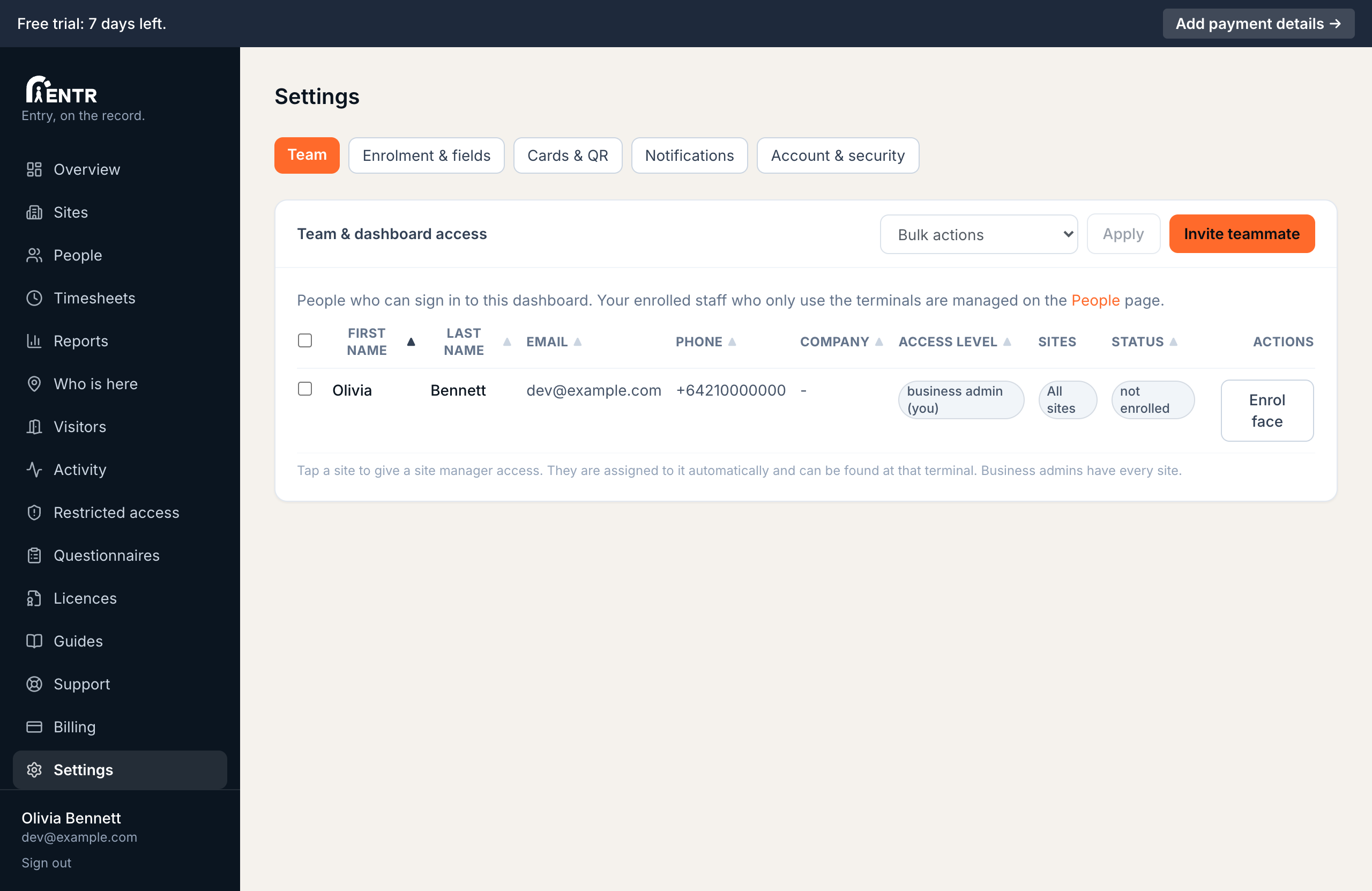
Go to Settings, then Team. This table lists everyone who can sign in to the dashboard. Your enrolled staff who only use the terminals live on the People page instead.
- 2
Invite a teammate
Press Invite teammate. Enter their name, email, phone, then choose an access level. Business admin sees every site plus billing and settings. Site manager sees only the sites you tap for them.
They receive an email with a one-time link to set their password. The link lasts 7 days; you can re-send it from the table.
- 3
Use the table tools
Column headers sort the table. Tick boxes on the left select rows; the Bulk actions menu at the top right can re-send invites, send enrolment links, enable, disable or delete the selected people in one go.
You cannot disable or delete yourself, or the last remaining admin. That guard stops an account locking itself out.
- 4
Protect admin accounts with 2FA
Every admin should turn on two-factor authentication under Settings, Account & security. It takes about a minute with any authenticator app.
Using iENTR at a workplace? See how the whole system fits your door.
iENTR for workplaces →Related guides
Try it on one door.
Seven days free, cancel any time. Mount the iPad, pair it with one code and you are running inside half an hour.