
Advanced settings
Restricted access
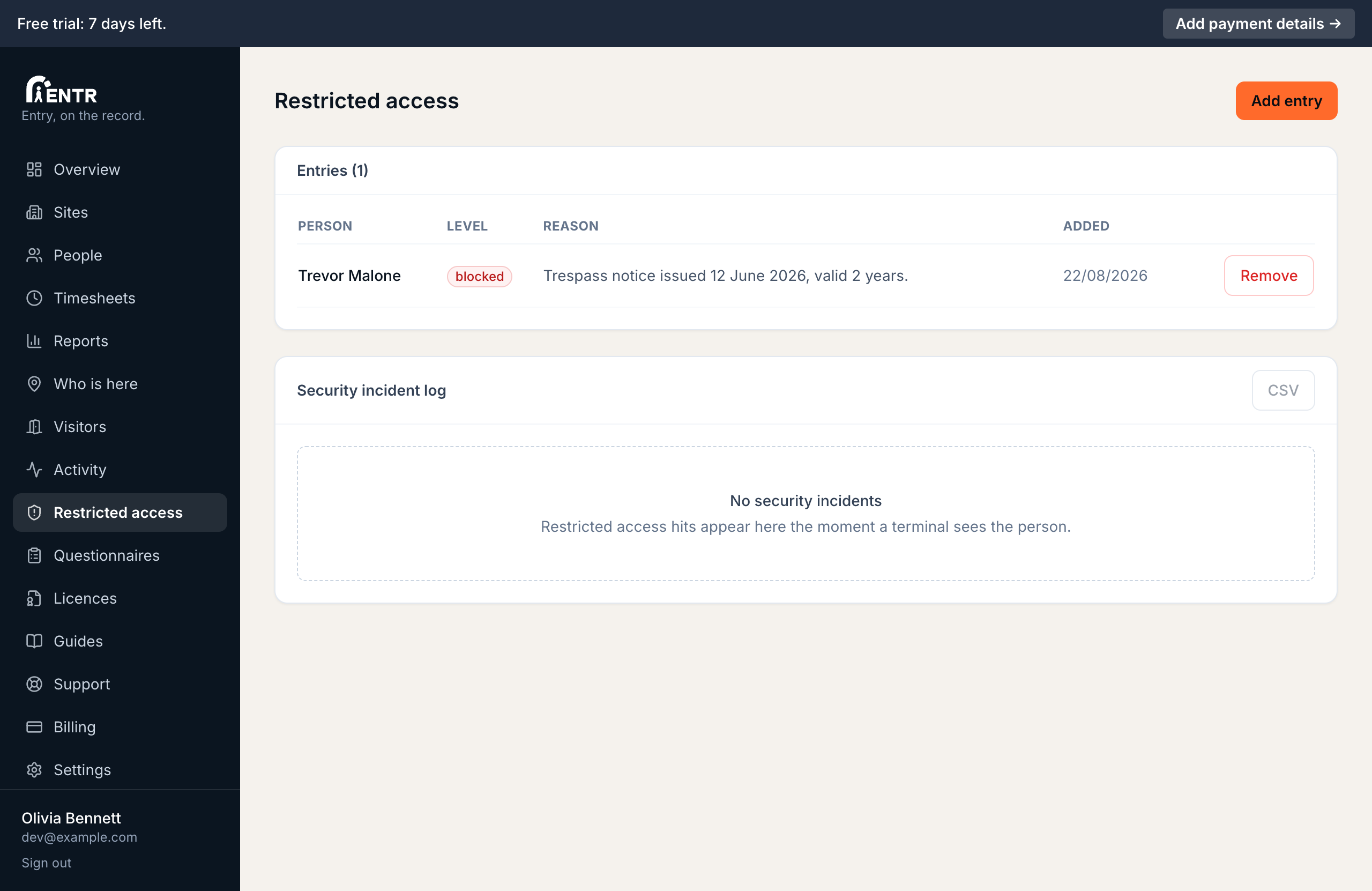
Restricted access lets an administrator block or flag specific enrolled people: a Blocked person is refused at the terminal with an incident raised, a Flagged person is admitted while staff are alerted. It is an access decision about a known person, never surveillance of strangers.
3 min read · 2 steps
- 1
Add someone to the list
Open Restricted access. Add a person from your roster or by name, choose Flag (allow but alert) or Block (refuse sign-in), record the reason. Every entry is audited.
- 2
What happens at the terminal
A blocked person is refused with a neutral message: no reason shows on screen. A flagged person signs in normally while admins are alerted. Incidents list on the same page with full history.
Using iENTR at a gym? See how the whole system fits your door.
iENTR for gyms and fitness →Related guides
Try it on one door.
Seven days free, cancel any time. Mount the iPad, pair it with one code and you are running inside half an hour.