
Sites
Site settings explained
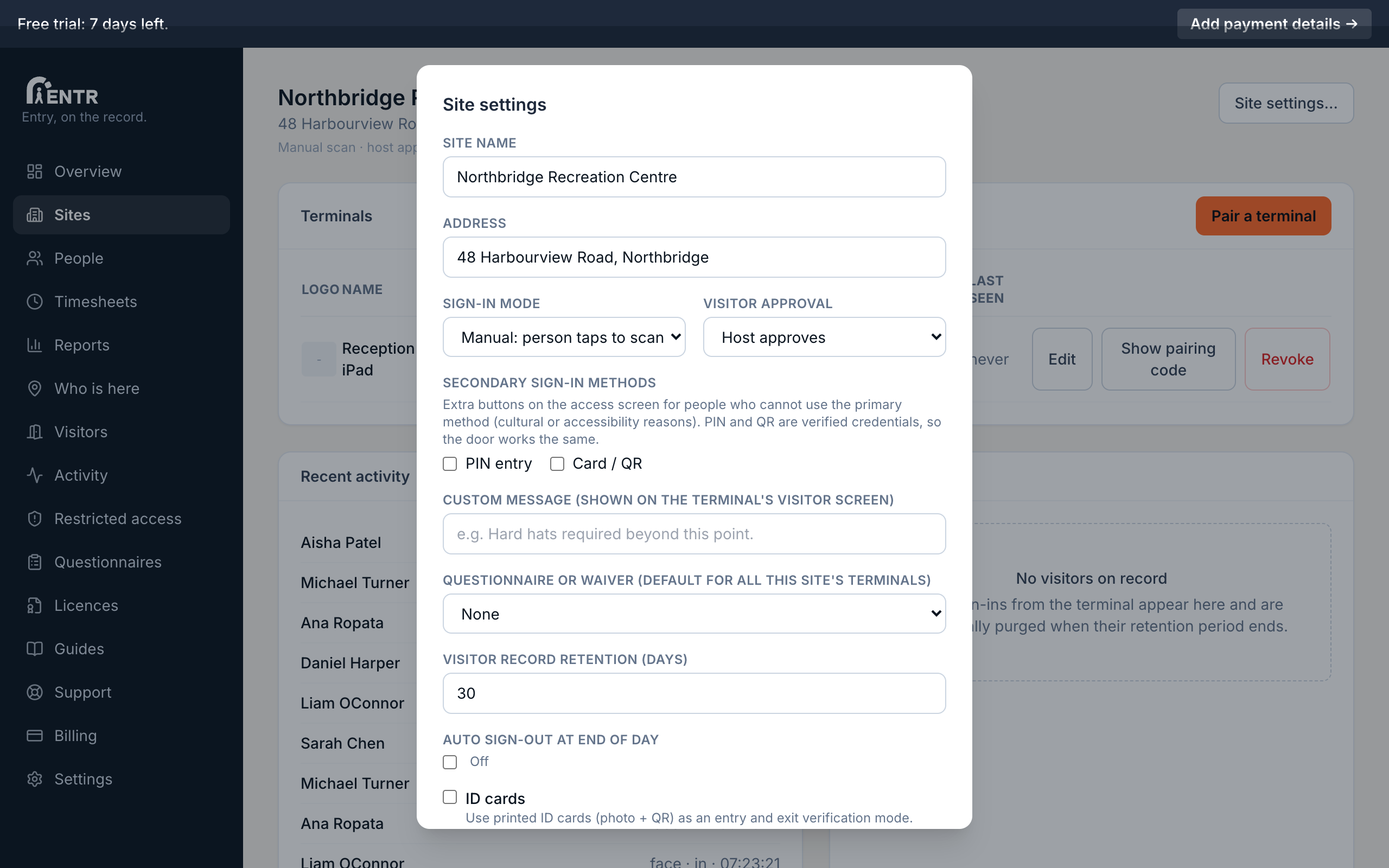
Every iENTR site has its own settings window covering sign-in mode, secondary sign-in methods, visitor approval, questionnaires, end-of-day auto sign-out, notifications and ID card photos. This guide explains every option and when to use it.
8 min read · 8 steps
- 1
Open Site settings
Open the site from the Sites page, then press Site settings. The window scrolls; save with the button at the bottom.
- 2
Sign-in mode
Auto scan records people the moment the terminal recognises them: best for busy doors. Manual confirm shows the person their name with a Sign in button they must press: best where a deliberate tap matters, for example when a questionnaire or legal declaration applies.
- 3
Secondary sign-in methods
Face is the primary method. Ticking PIN entry or Card / QR adds those as extra buttons on the terminal so people who cannot or prefer not to use face recognition still sign in themselves. Cultural or accessibility reasons are the usual drivers.
Each terminal can also override this list in its own settings.
- 4
Visitor settings
Approval mode decides what happens after a visitor signs in at the terminal: Auto lets them straight through, Manual holds them at the screen until an admin approves from the dashboard. Visitor retention days controls how long visitor records are kept before automatic deletion.
- 5
Questionnaire
Attach a questionnaire (built on the Questionnaires page) so people answer it at the terminal as part of signing in. Choose whether it applies to staff, visitors or both when you build it.
- 6
End-of-day auto sign-out
Set a time (for example 18:00) and anyone still shown on site at that time is signed out automatically. Presence and timesheets stay honest even when someone forgets to sign out. Admins can be notified each time it runs.
- 7
Notifications plus quiet hours
Choose which events email or text the site's admins: visitor arrivals, restricted-access alerts, auto sign-outs, settings changes. Quiet hours hold non-urgent notifications overnight.
- 8
ID card photos
Turn on Enable ID cards to capture a card photo during each person's next enrolment. The photo appears on printed ID cards; card design lives under Settings, Cards & QR.
Using iENTR at a construction site? See how the whole system fits your door.
iENTR for construction →Related guides
Try it on one door.
Seven days free, cancel any time. Mount the iPad, pair it with one code and you are running inside half an hour.