
Terminals
Terminal settings
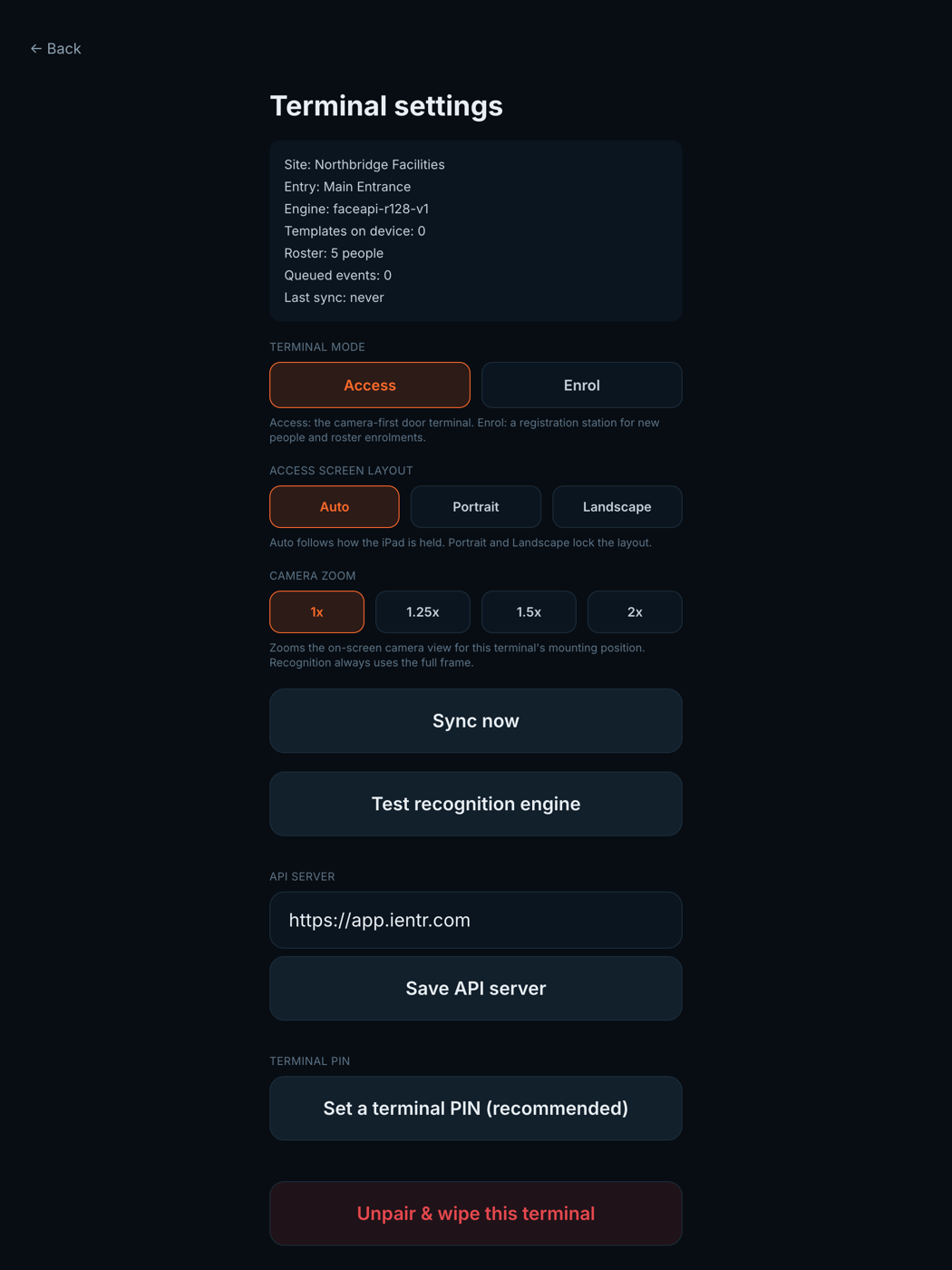
Each terminal has a PIN-protected settings screen on the iPad covering its mode, screen layout, camera zoom and entry name. The PIN keeps the terminal locked to its sign-in screen for everyone else.
4 min read · 3 steps
- 1
Open the settings gear
Tap the small gear in the corner of the terminal screen, then enter the terminal PIN. Without the PIN the terminal stays locked to its sign-in screen.
- 2
Mode, layout, zoom
Mode switches between Access and Enrol. Layout picks portrait, landscape or automatic for the access screen. Camera zoom (1x to 2x) crops the view tighter: useful when the iPad sits far from where people stand.
- 3
Entry name
The entry name (Main Entrance, Staff Door, Reception) shows under the site name on screen plus against every entry this terminal records, so reports can tell doors apart.
Using iENTR at a construction site? See how the whole system fits your door.
iENTR for construction →Related guides
Try it on one door.
Seven days free, cancel any time. Mount the iPad, pair it with one code and you are running inside half an hour.