
Getting started
Welcome to iENTR
iENTR has two halves: the admin dashboard at app.ientr.com, where you manage sites, people and records, plus the terminal app on an iPad at your door, which recognises faces on the device and records each entry. This guide walks through how they fit together and where everything lives.
4 min read · 3 steps
- 1
How iENTR fits together
iENTR has two halves. The dashboard (this website) is where admins manage everything: sites, people, terminals, reports. The terminal app runs on an iPad at your door or reception desk. People walk up, the terminal recognises their face, their entry is recorded.
Face matching happens on the terminal itself using a numeric template that cannot be turned back into a face. Photos are not kept for matching; if you turn on profile photos in Settings, one photo per person is kept for your records plus ID cards.
- 2
Sign in to the dashboard
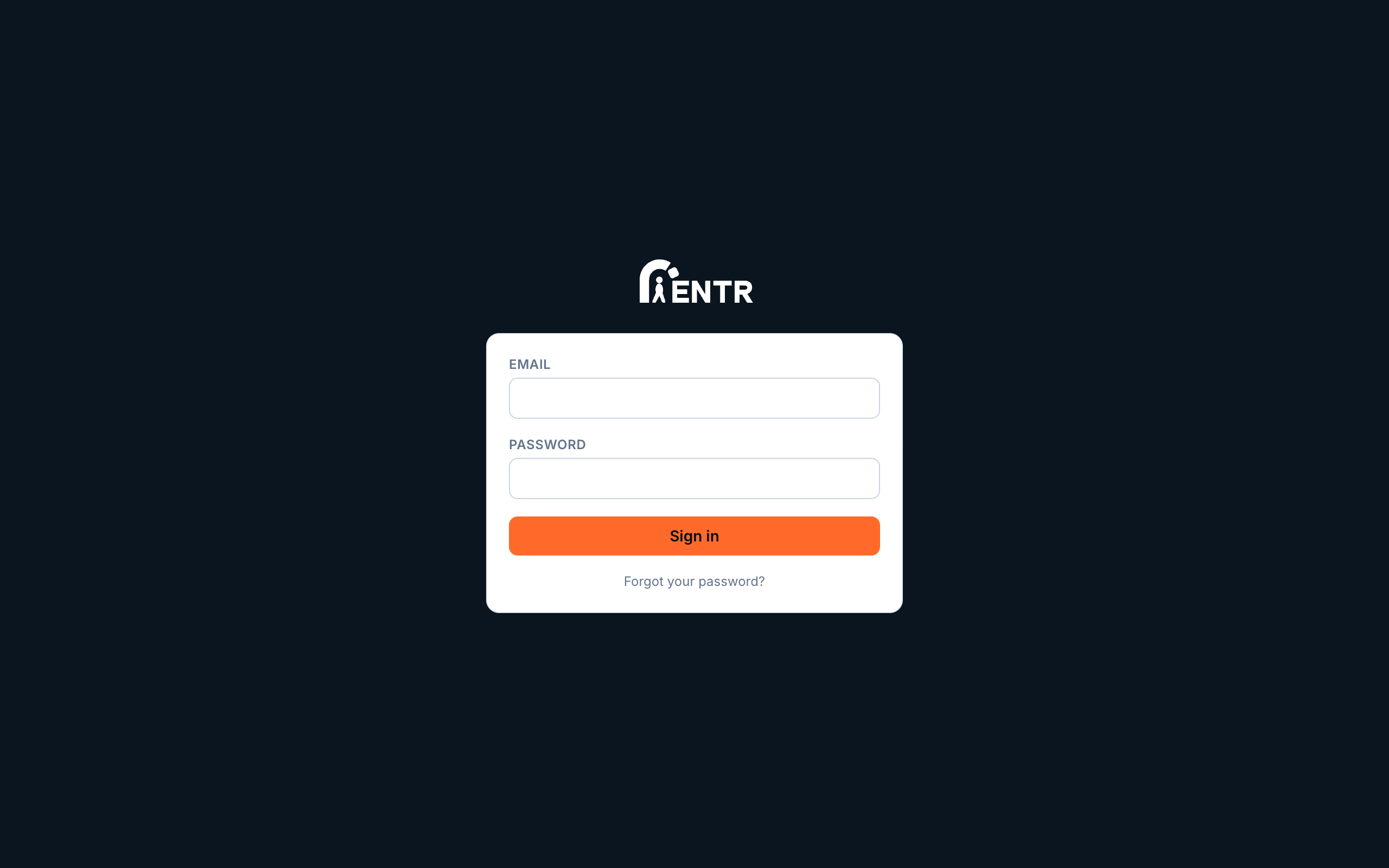
Go to app.ientr.com on any computer or tablet. Enter the email address plus the password from your invitation. If you forget your password, use the Forgot password link: a one-time reset link is emailed to you.
- 3
Get to know the Overview
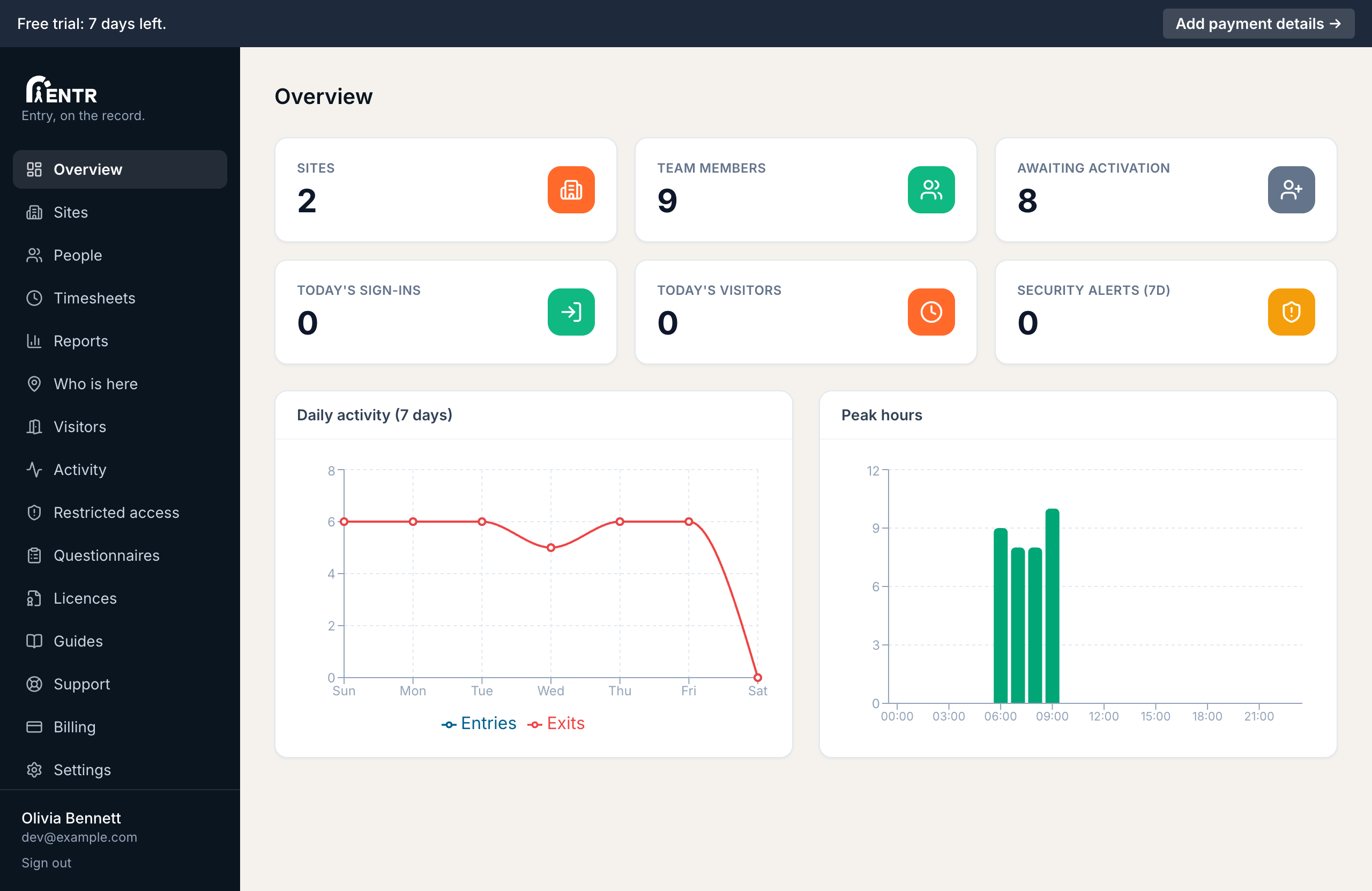
The Overview page is your home. It shows sites, team size, today's entries, visitors, any security alerts, plus charts of the last 7 days. The menu on the left reaches every other page.
You can come back to these guides any time: they live under Guides in the left menu.
Using iENTR at a workplace? See how the whole system fits your door.
iENTR for workplaces →Related guides
Try it on one door.
Seven days free, cancel any time. Mount the iPad, pair it with one code and you are running inside half an hour.