
Advanced settings
Custom enrolment fields
Custom fields are your own enrolment questions, like Trade, Membership type or Department. Every enrolment path asks them and the answers live on each person's record on the People page.
3 min read · 3 steps
- 1
Define your fields
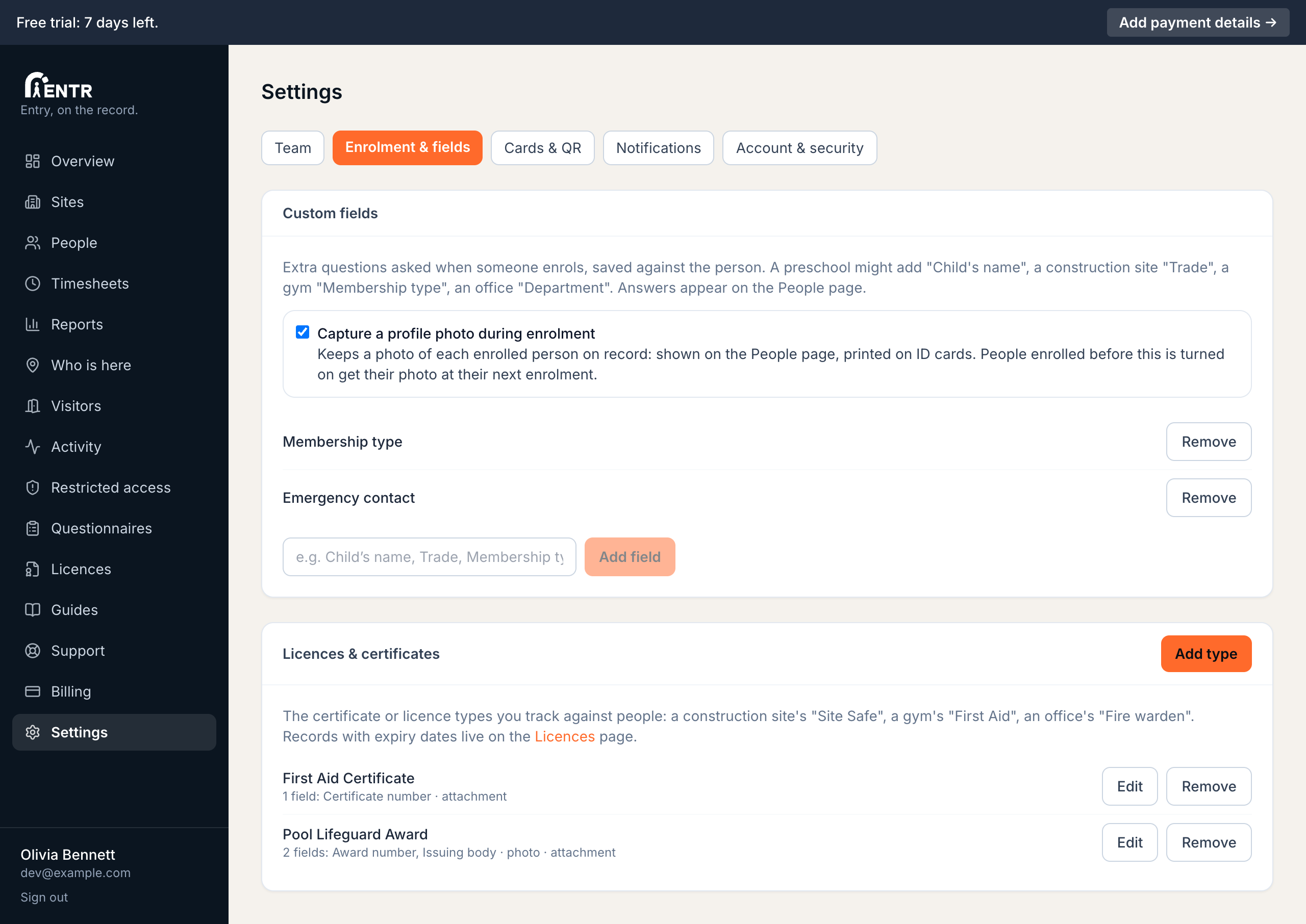
Go to Settings, then Enrolment & fields. Add the extra questions your business needs: a preschool might add Child's name, a construction site Trade, a gym Membership type, an office Department.
- 2
Where they appear
Every enrolment path asks your fields: the phone enrolment link, terminal registration, the Add person window. Answers show on the People page against each person; edit them any time from the person's window.
- 3
Profile photos
The same Settings card has a toggle: Capture a profile photo during enrolment. Turn it on to keep a photo of each enrolled person on record. Photos appear in their own column on the People page plus on printed ID cards.
People enrolled before you turned it on get their photo at their next enrolment.
Using iENTR at a gym? See how the whole system fits your door.
iENTR for gyms and fitness →Related guides
Try it on one door.
Seven days free, cancel any time. Mount the iPad, pair it with one code and you are running inside half an hour.