
User onboarding
Managing a person
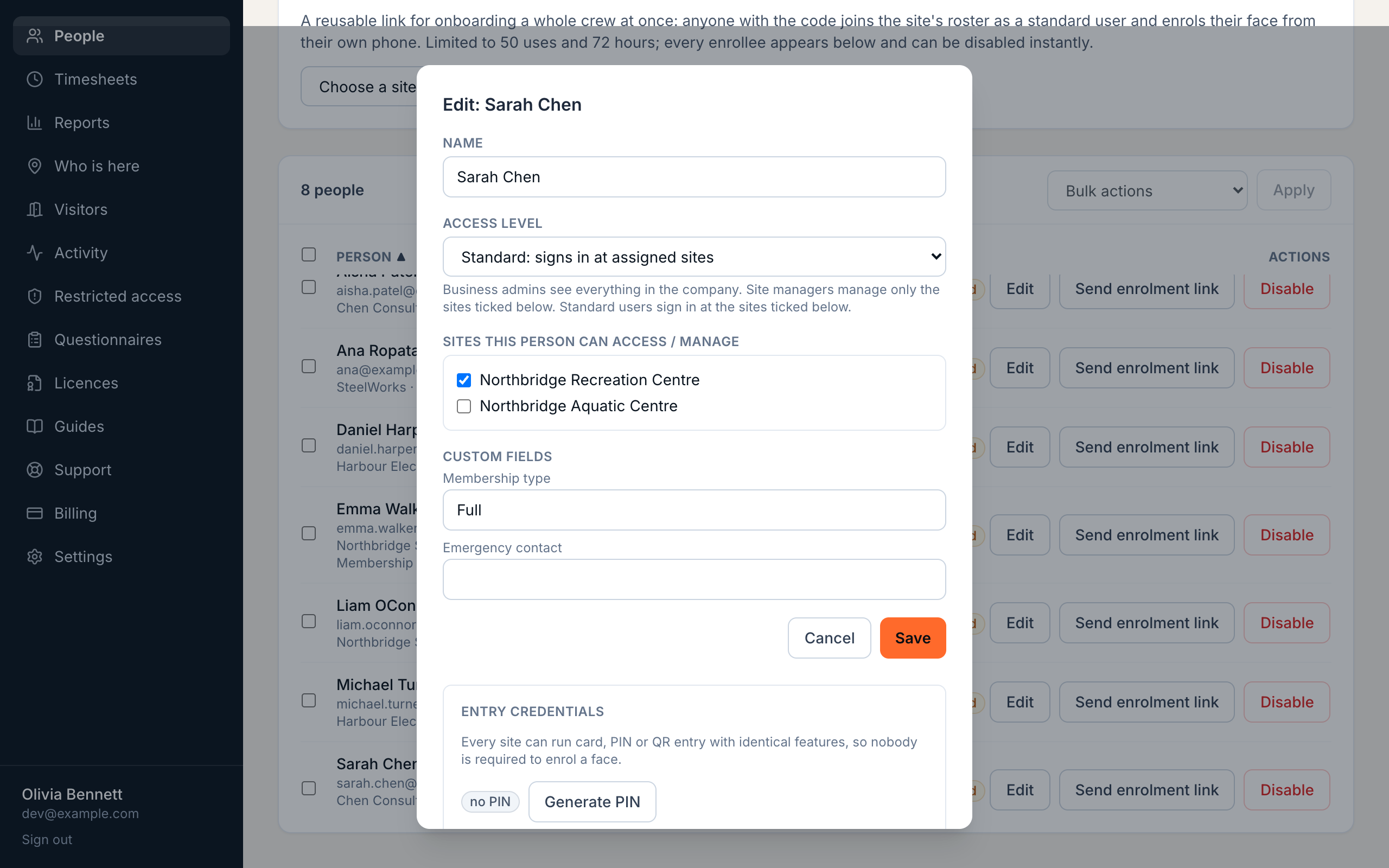
Everything about a person lives in one window on the People page: their details, site access, custom fields, PIN and card credentials, plus privacy actions like wiping their face template or deleting the person entirely.
5 min read · 3 steps
- 1
Open a person
Press Edit on any row of the People page. The window holds everything about that person: details, site assignments, custom field answers, credentials, privacy actions.
Name, email, phone and company name can all be corrected here after the person was added, so a typo at sign-up is a thirty-second fix. Changing someone's email cancels any invite or enrolment link already sent to the old address, so send a fresh one afterwards.
- 2
PIN and card credentials
Issue a PIN for keypad sign-in or a QR credential for card sign-in from this window. The QR credential is what prints on their ID card. Credentials can carry an expiry date, useful for contractors.
- 3
Disable or delete
Disable blocks sign-in instantly while keeping history: right for someone on leave or a lapsed membership. Delete removes the person permanently. Wipe biometrics deletes just the face template while keeping the person's record.
Anyone can request deletion of their biometric data. Wipe biometrics honours that in one press; they can re-enrol later if things change.
Using iENTR at a workplace? See how the whole system fits your door.
iENTR for workplaces →Related guides
Try it on one door.
Seven days free, cancel any time. Mount the iPad, pair it with one code and you are running inside half an hour.