
ID cards & QR codes
Printing an ID card
Printing an ID card takes three steps: issue the person a QR entry credential, preview the finished card with your design, then print at true card size for card stock or a card printer.
3 min read · 3 steps
- 1
Issue the QR credential
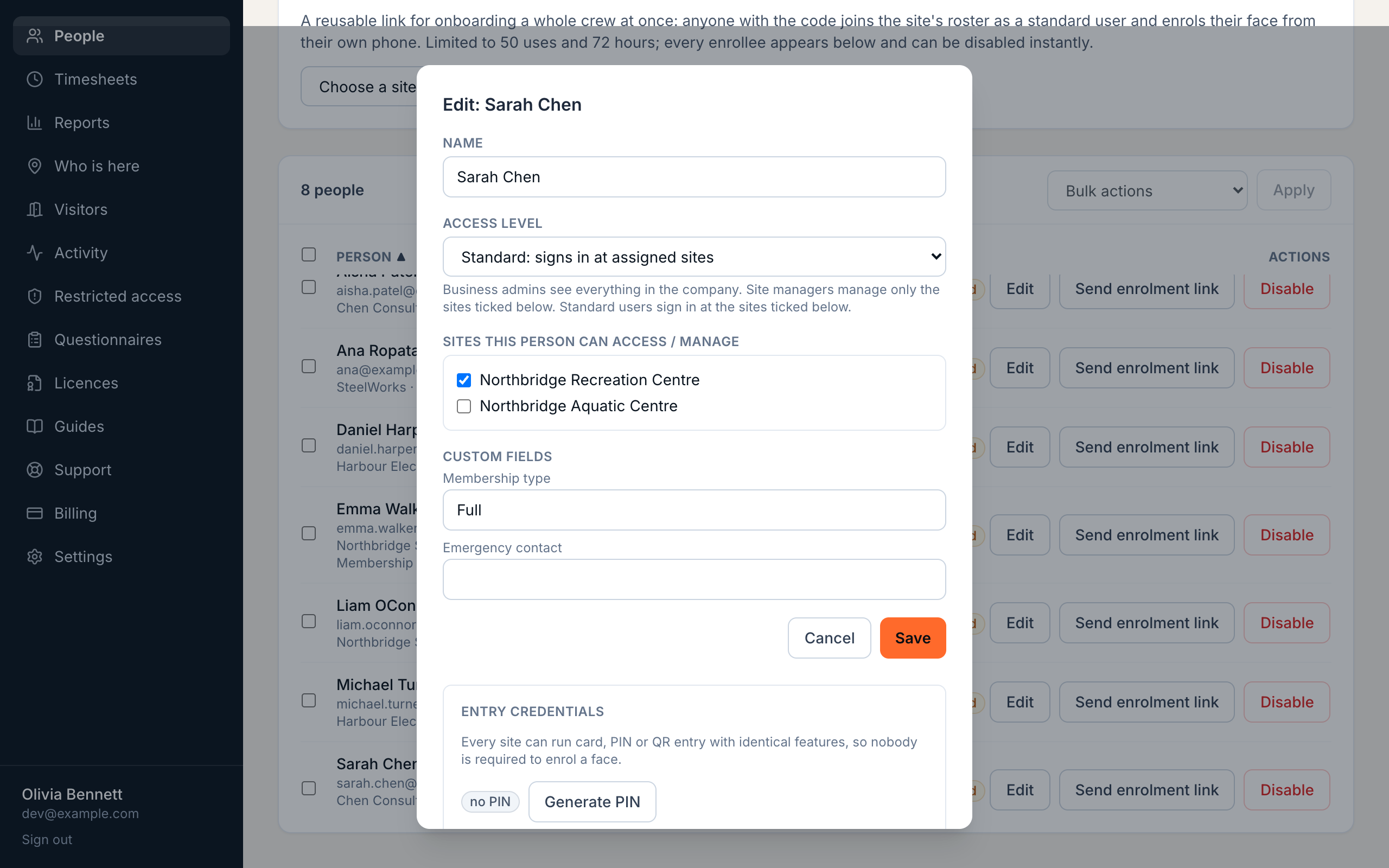
A card carries the person's QR entry credential, so issue one first: open the person on the People page, press Issue QR credential.
- 2
Preview then print
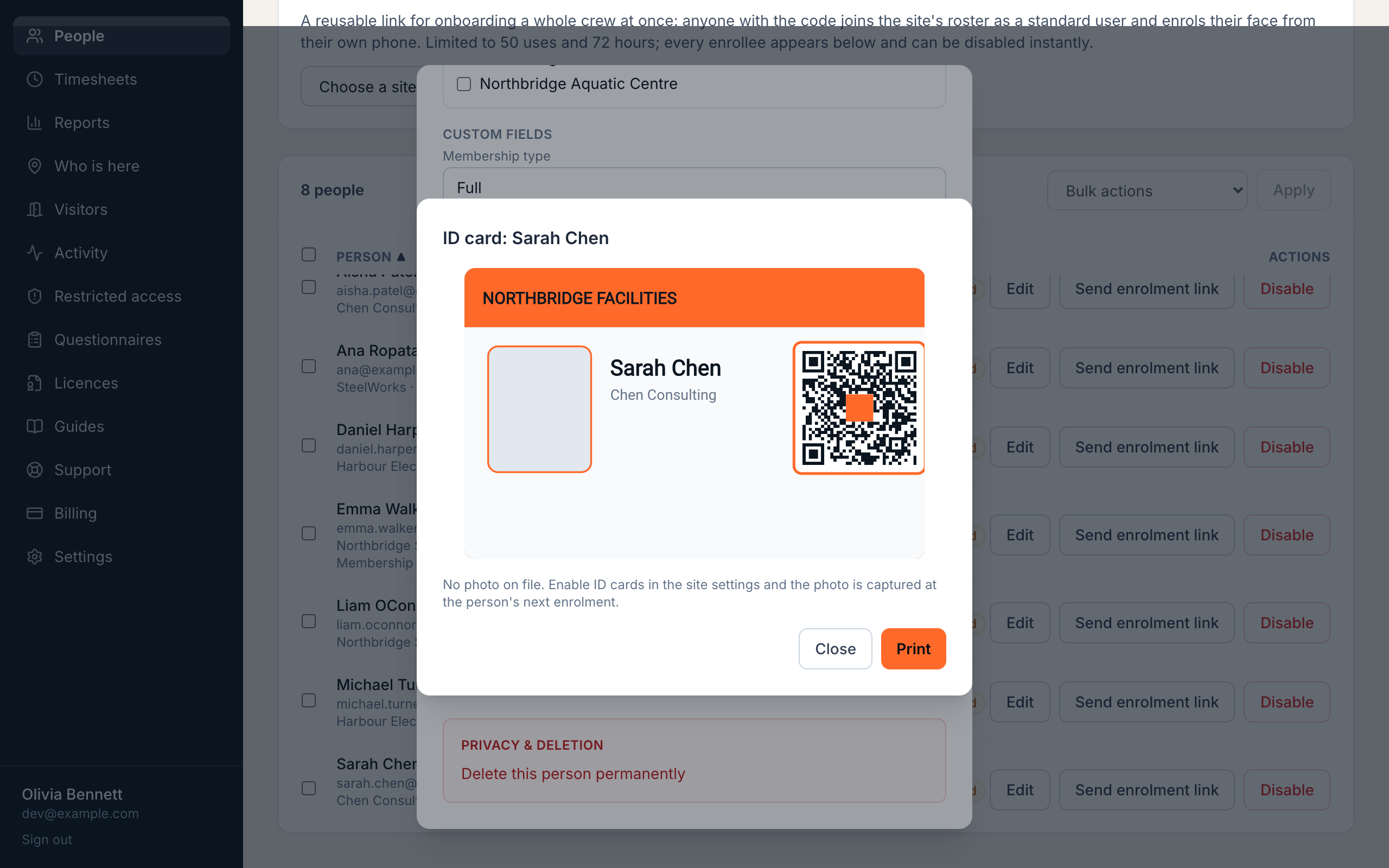
Press Print ID card in the same window. The preview shows the finished card with your design, their name, their photo when one is on file. Print opens your printer dialog at true CR80 size, ready for card stock or a card printer.
- 3
About card photos
Photos are captured during enrolment when profile photos are on (Settings, Enrolment & fields) or the site has Enable ID cards turned on. A person enrolled before you enabled either gets their photo at their next re-enrolment.
Using iENTR at a workplace? See how the whole system fits your door.
iENTR for workplaces →Related guides
Try it on one door.
Seven days free, cancel any time. Mount the iPad, pair it with one code and you are running inside half an hour.