
Reporting
Scheduled email reports
Scheduled reports email a chosen report daily, weekly or monthly to up to ten recipients, who do not need dashboard accounts. You set the period covered, the sections included and the send time, then iENTR sends it on schedule.
5 min read · 3 steps
- 1
Create a schedule
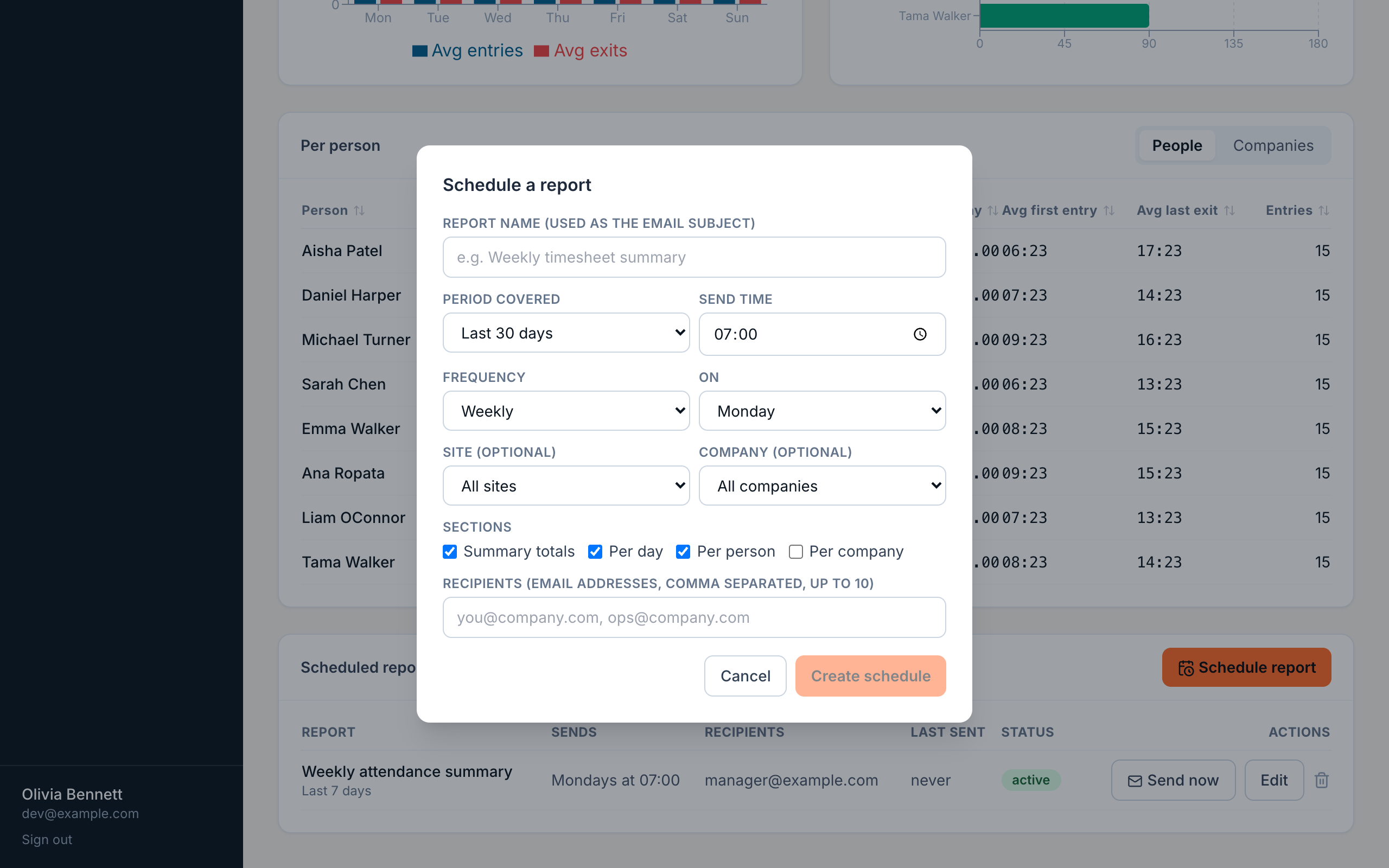
At the bottom of the Reports page press Schedule report. Name it (the name becomes the email subject), pick the period it covers (yesterday, last 7 days, last month among others), choose the sections to include, set the cadence: daily, weekly on a chosen day, or monthly on a chosen date.
- 2
Choose recipients
Enter up to 10 email addresses, comma separated. Recipients do not need dashboard accounts: a site owner or head office can receive the numbers without ever logging in.
- 3
Manage your schedules
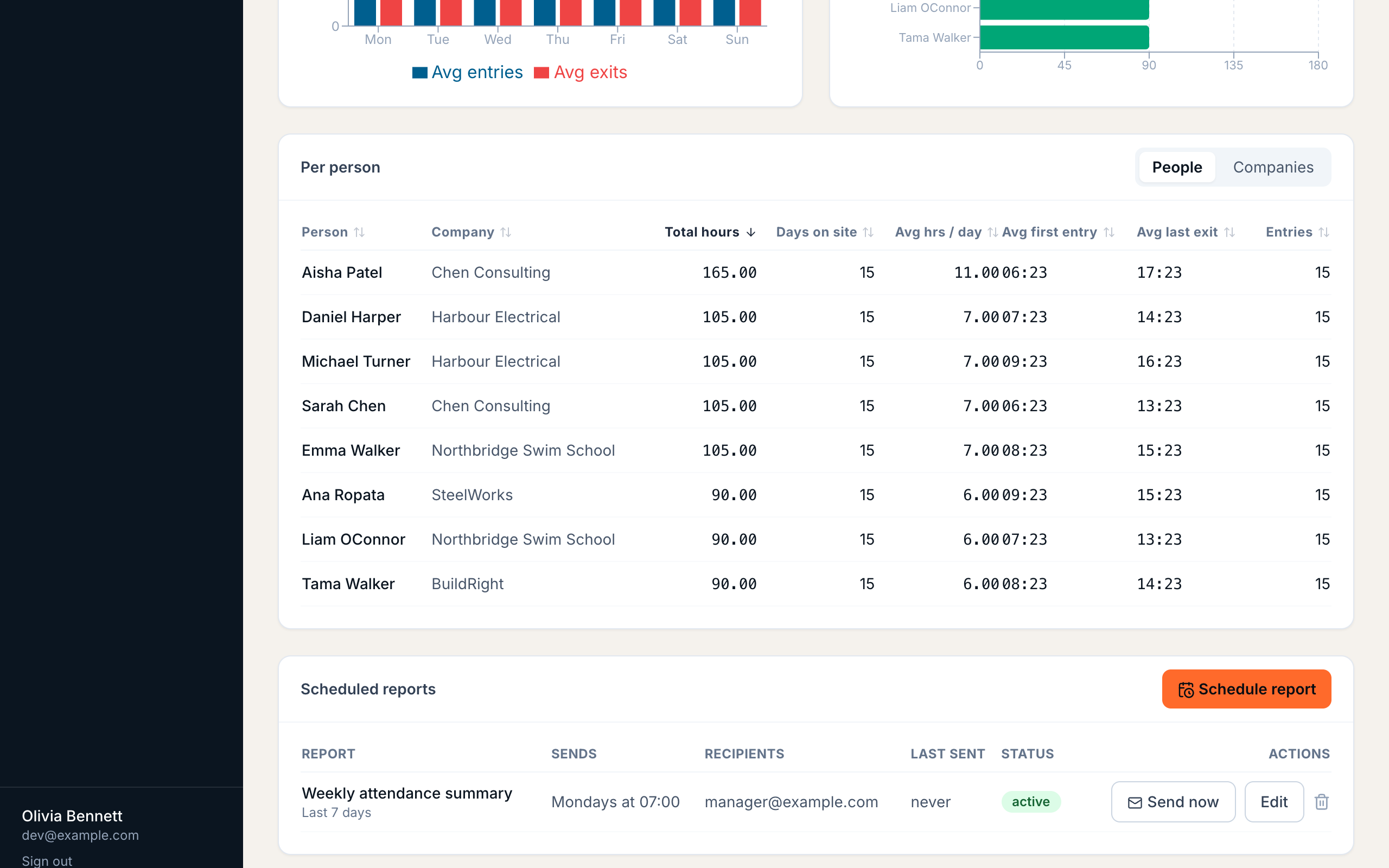
Every schedule lists in the Scheduled reports table with its cadence, recipients, last sent day. Press the status badge to pause or resume. Send now emails the report immediately: the easy way to check it looks right before trusting the recurrence.
Using iENTR at a construction site? See how the whole system fits your door.
iENTR for construction →Related guides
Try it on one door.
Seven days free, cancel any time. Mount the iPad, pair it with one code and you are running inside half an hour.